
Presets and Multi-Condition Alerts

Tradingview, Technical, Fundamental, Economic, Market Report, Crypto Market Report, Commodity Market Report, Gold, Silver, Crudeoil, Nifty, Banknifty, Sensex, Forex,

How to Use Alert Presets and Multi-Condition Alerts on TradingView

TradingView’s multi-condition alerts and alert presets are powerful tools that allow you to automate complex strategies across your entire watchlist with just a few clicks. This saves time, reduces manual errors, and ensures you never miss a setup.

A recent TradingView tutorial breaks down exactly how to create these presets using two popular trading strategies: a Scalping Setup and a Trend Impulse Setup. Here is a guide on how to configure and apply them.
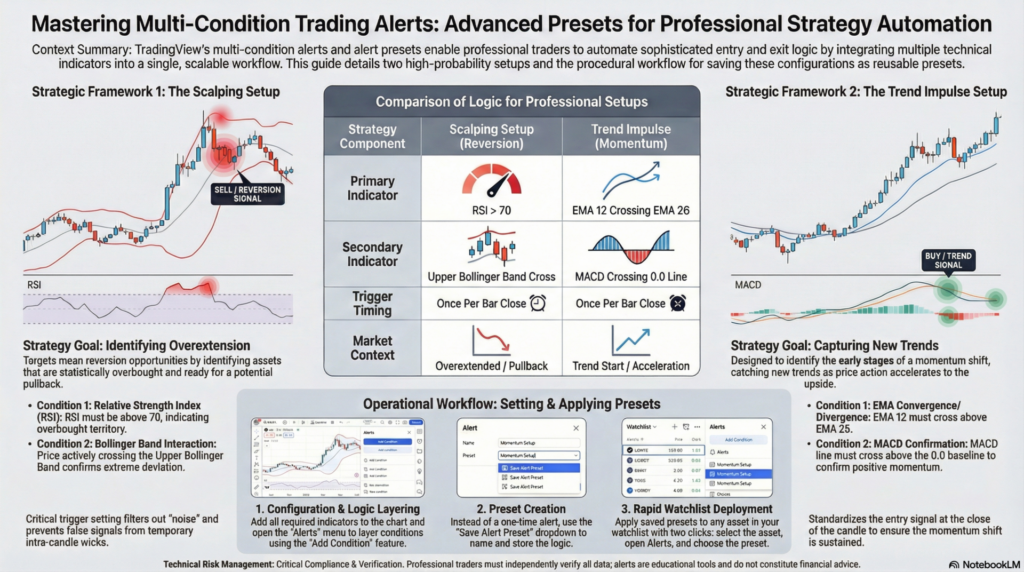
Strategy 1: The Scalping Setup (Exhaustion & Reversion)

Tradingview, Technical, Fundamental, Economic, Market Report, Crypto Market Report, Commodity Market Report, Gold, Silver, Crudeoil, Nifty, Banknifty, Sensex, Forex,

This strategy looks for moments when a stock is overextended and potentially ready for a pullback. It uses two conditions:

  1. RSI (Relative Strength Index): Above 70 (Overbought).
  2. Bollinger Bands: Price crossing the Upper Bollinger Band.

How to set it up:

  1. Add Indicators: Add the RSI and Bollinger Bands to your chart.
  2. Create a Watchlist: Create a new watchlist (e.g., “Scalping”) and add the assets you want to monitor.
  3. Open the Alerts Menu: Click the “Alerts” icon at the top of the chart.
  4. Configure Conditions:
    • Set the first condition to Bollinger Bands and select the Upper band.
    • Click Add Condition and select RSI. Set it to Crossing the value of 70.
  5. Set the Trigger: Change the trigger to “Once Per Bar Close” to prevent false signals from mid-candle wicks.
  6. Save as Preset: Instead of just clicking “Create,” look for the drop-down menu at the top of the alert box. Select “Save Alert Preset”, name it (e.g., “Scalp Setup”), and save.

Strategy 2: The Trend Impulse Setup (Momentum Breakout)

This setup aims to catch new trends as momentum shifts to the upside. It requires three conditions:

  1. EMA 12: Crossing above the EMA 26.
  2. EMA 26: The slower moving average being crossed.
  3. MACD: Crossing above the 0.0 line (positive momentum).

How to set it up:

  1. Add Indicators: Add two EMAs (set the lengths to 12 and 26) and the MACD to your chart.
  2. Create a Watchlist: Create a new watchlist (e.g., “Momentum”).
  3. Open the Alerts Menu and start adding conditions:
    • Condition 1: EMA 12 crossing EMA 26.
    • Click Add Condition.
    • Condition 2: MACD crossing the value of 0.0.
  4. Set the Trigger: Again, use “Once Per Bar Close”.
  5. Save as Preset: Save this configuration as a new preset (e.g., “Momentum Setup”).

Applying Presets to Your Watchlist

Once you have saved a preset, applying it to new charts is incredibly fast:

  1. Click on any asset in your watchlist to open its chart.
  2. Click the Alerts icon.
  3. Instead of manually entering all the conditions again, click the Preset drop-down menu at the top of the alert box.
  4. Select your saved preset (e.g., “Momentum Setup”) and click Create.

The alert is now active for that specific asset, complete with all your pre-defined logic and notification preferences. You can repeat this process rapidly for every asset in your watchlist.


Legal Disclaimer & Liability Waiver
aiTrendview Disclaimer

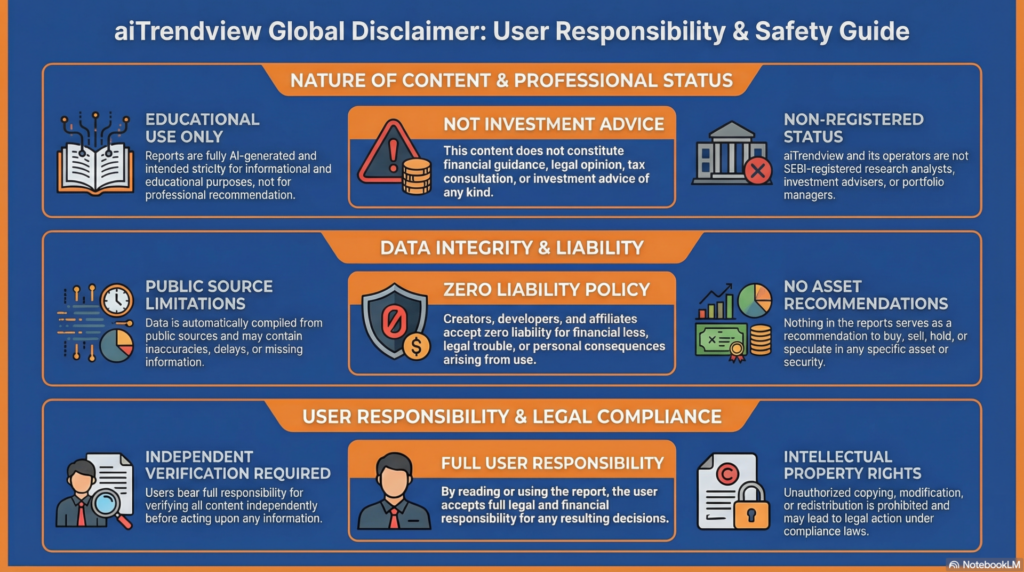
This AI-generated report is strictly educational and does not constitute financial, legal, or professional advice. aiTrendview and its affiliates are not SEBI-registered advisors and assume zero liability for any losses or consequences resulting from its use. All data is autonomously harvested from public sources and may be flawed, delayed, or incomplete; therefore, you assume exclusive responsibility for independently verifying information before taking any action. Under no circumstances should this content be construed as a recommendation to trade or speculate in any security. By accessing this material, you acknowledge that any reliance on this data is at your sole risk, and you agree to be bound by strict intellectual property protections prohibiting the unauthorized redistribution or modification of this work.

Share this post :
Facebook
WhatsApp