
Sitting glued to your charts waiting for price to reach a specific zone can be exhausting and often leads to forced, emotional trading decisions. Fortunately, TradingView allows you to set alerts directly on your drawing tools—meaning you can map out your technical analysis, step away from your screen, and let the platform notify you exactly when it’s time to execute.
A recent tutorial on the TradingView YouTube channel explains exactly how to set this up using various common drawing tools. Here is a breakdown of the process.
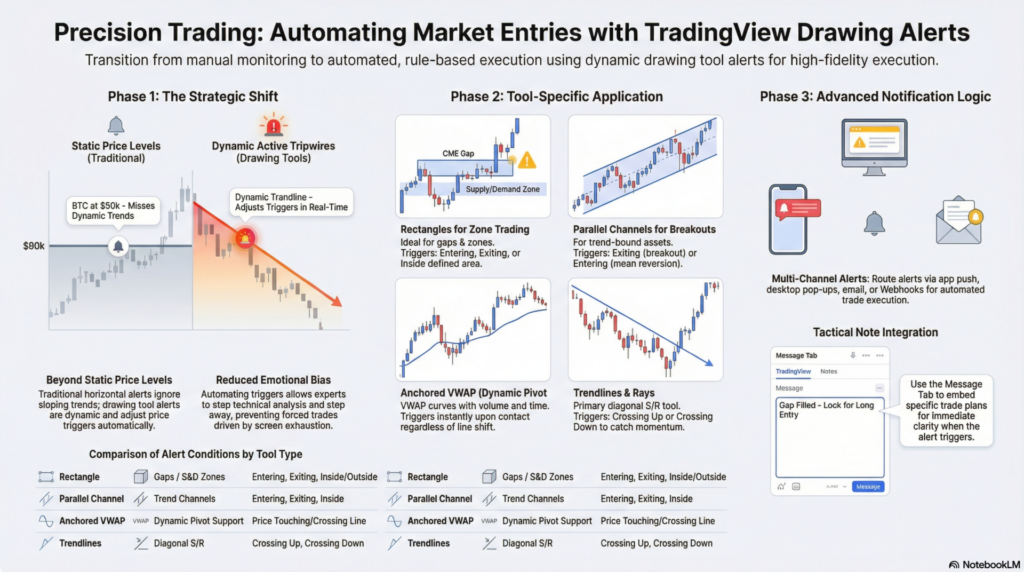
Traditional alerts are often set at horizontal price levels (e.g., “Alert me when Bitcoin hits $90,000”). However, dynamic trends and zones don’t always respect flat numbers. By setting alerts on drawing tools like trendlines, channels, and VWAP, the alert adapts to the shape of your analysis. If a trendline is sloping upward, the alert trigger price will automatically adjust higher as time passes.
1. Rectangles (Supply/Demand Zones or Gaps)
The video demonstrates using a rectangle to highlight a weekend CME gap on the Bitcoin chart.
2. Parallel Channels
If you are trading a clear uptrend or downtrend bound by a channel, you can wait for the price to hit the extremes.
3. Anchored VWAP
The Anchored VWAP (Volume Weighted Average Price) is a dynamic line tied to a specific pivot point. Because it curves with price and volume over time, setting a standard horizontal price alert won’t work.
4. Trendlines & Rays
Perfect for trading diagonal support/resistance or breakouts.
Once you click “Add Alert,” a settings box appears where you can dictate exactly how you want to be notified:
By turning your technical drawings into active tripwires, you can trade with more patience, better discipline, and significantly less screen time.
Legal Disclaimer & Liability Waiver
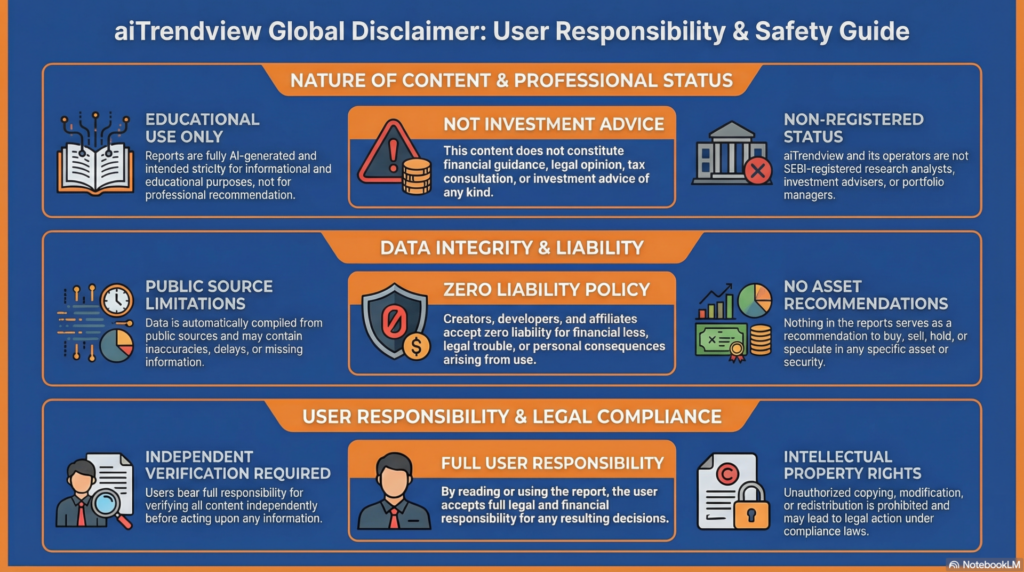
This AI-generated report is strictly educational and does not constitute financial, legal, or professional advice. aiTrendview and its affiliates are not SEBI-registered advisors and assume zero liability for any losses or consequences resulting from its use. All data is autonomously harvested from public sources and may be flawed, delayed, or incomplete; therefore, you assume exclusive responsibility for independently verifying information before taking any action. Under no circumstances should this content be construed as a recommendation to trade or speculate in any security. By accessing this material, you acknowledge that any reliance on this data is at your sole risk, and you agree to be bound by strict intellectual property protections prohibiting the unauthorized redistribution or modification of this work.