


Momentum Indicator on TradingView

Tradingview, Technical, Fundamental, Economic, Market Report, Crypto Market Report, Commodity Market Report, Gold, Silver, Crudeoil, Nifty, Banknifty, Sensex, Forex,

Stop Guessing Trends:
Mastering the Momentum Indicator on TradingView

Have you ever watched a stock soar and felt the paralyzed “FOMO” of not knowing whether to jump in? Or watched a price crash and wondered if it was a dip or a disaster? In a recent tutorial, TradingView breaks down the Momentum Indicator—a tool that acts like a speedometer for the market, helping you gauge the strength of a move before you commit your capital.

Here is a summary of how to set it up, how to read it, and a simple strategy to start using it today.

What is the Momentum Indicator?

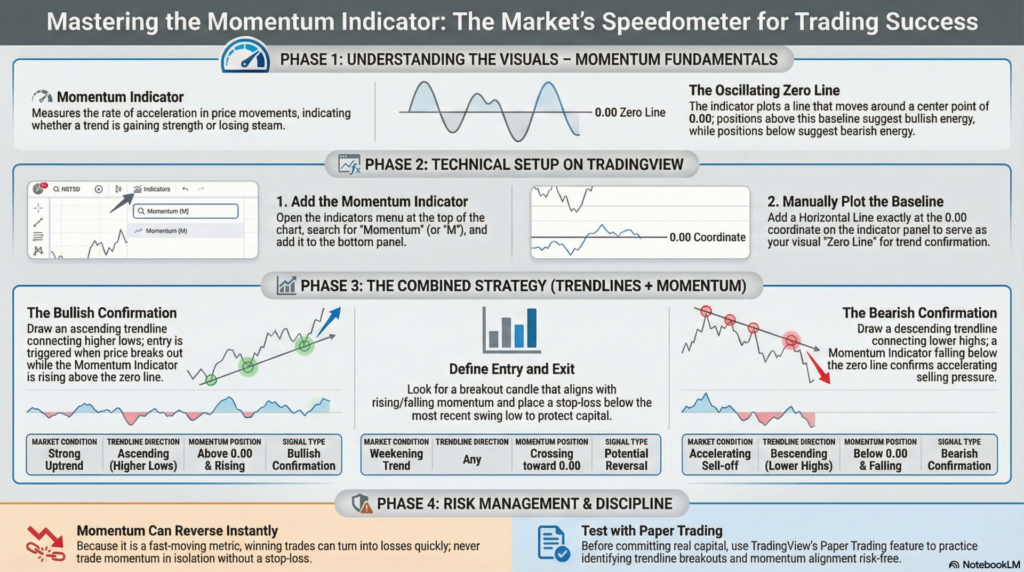
In technical analysis, momentum measures the acceleration of price or volume. Think of it as a car’s speedometer: it tells you if the trend is speeding up or slowing down.

  • The Visual: The indicator plots a line that oscillates around a center point (Zero).
  • The Signal: It helps visualize the strength of a trend beyond just the candles on your chart.

How to Set It Up

  1. Add the Indicator: Open the Indicators menu at the top of your TradingView chart and search for “Momentum” (or just type “M”). Select it to add it to the bottom panel.
  2. Add the Zero Line: The video recommends manually adding a Horizontal Line at the 0.00 coordinate on the indicator panel. This serves as your visual baseline—above zero suggests positive momentum, and below zero suggests negative momentum.

A Simple Trading Strategy: Trendlines + Momentum

The tutorial advises against using the indicator in isolation. Instead, pair it with Trendlines for a higher probability setup.

  • The Bullish Setup:
    1. Draw an ascending trendline on the price chart connecting higher lows.
    2. Check the Momentum Indicator. If the line is above the zero line and rising, it confirms that the uptrend has strong energy.
    3. Entry: Look for a breakout candle that aligns with rising momentum.
    4. Stop Loss: Place your stop below the recent swing low.
  • The Bearish Setup:
    1. Draw a descending trendline connecting lower highs.
    2. If the Momentum Indicator is below the zero line and falling, the downtrend is accelerating.
    3. This confirms selling pressure or a shorting opportunity.

Managing Risk

Momentum is a fast-moving metric. The video emphasizes that momentum can reverse in an instant, turning a winning trade into a loss if you aren’t careful.

  • Discipline is Key: Always use a stop-loss.
  • Practice First: Before risking real money, use TradingView’s Paper Trading feature to test this strategy risk-free.

By combining price structure (trendlines) with market energy (momentum), you can filter out weak signals and trade with greater confidence.
Tradingview, Technical, Fundamental, Economic, Market Report, Crypto Market Report, Commodity Market Report, Gold, Silver, Crudeoil, Nifty, Banknifty, Sensex, Forex,

Legal Disclaimer & Liability Waiver

This AI-generated report is strictly educational and does not constitute financial, legal, or professional advice. aiTrendview and its affiliates are not SEBI-registered advisors and assume zero liability for any losses or consequences resulting from its use. All data is autonomously harvested from public sources and may be flawed, delayed, or incomplete; therefore, you assume exclusive responsibility for independently verifying information before taking any action. Under no circumstances should this content be construed as a recommendation to trade or speculate in any security. By accessing this material, you acknowledge that any reliance on this data is at your sole risk, and you agree to be bound by strict intellectual property protections prohibiting the unauthorized redistribution or modification of this work.


aiTrendview Disclaimer

Share this post :
Facebook
WhatsApp

Start To Invest And Earn More

Lorem ipsum dolor sit amet consectetur adipiscing elit dolor

Notice: Function WP_Scripts::add was called incorrectly. The script with the handle "hcaptcha-elementor-pro" was enqueued with dependencies that are not registered: hcaptcha. Please see Debugging in WordPress for more information. (This message was added in version 6.9.1.) in /var/www/vhosts/aitrendview.com/httpdocs/wp-includes/functions.php on line 6131